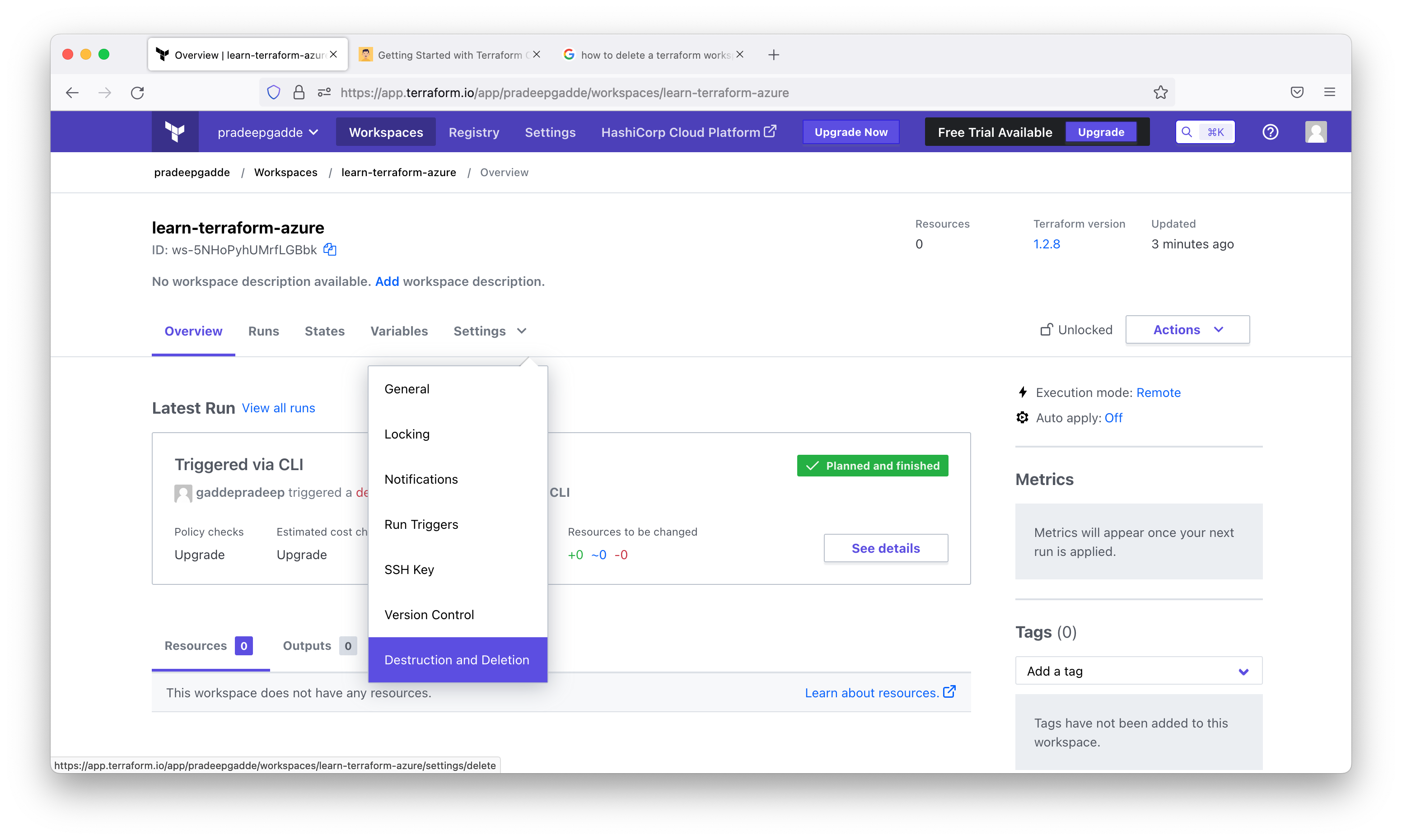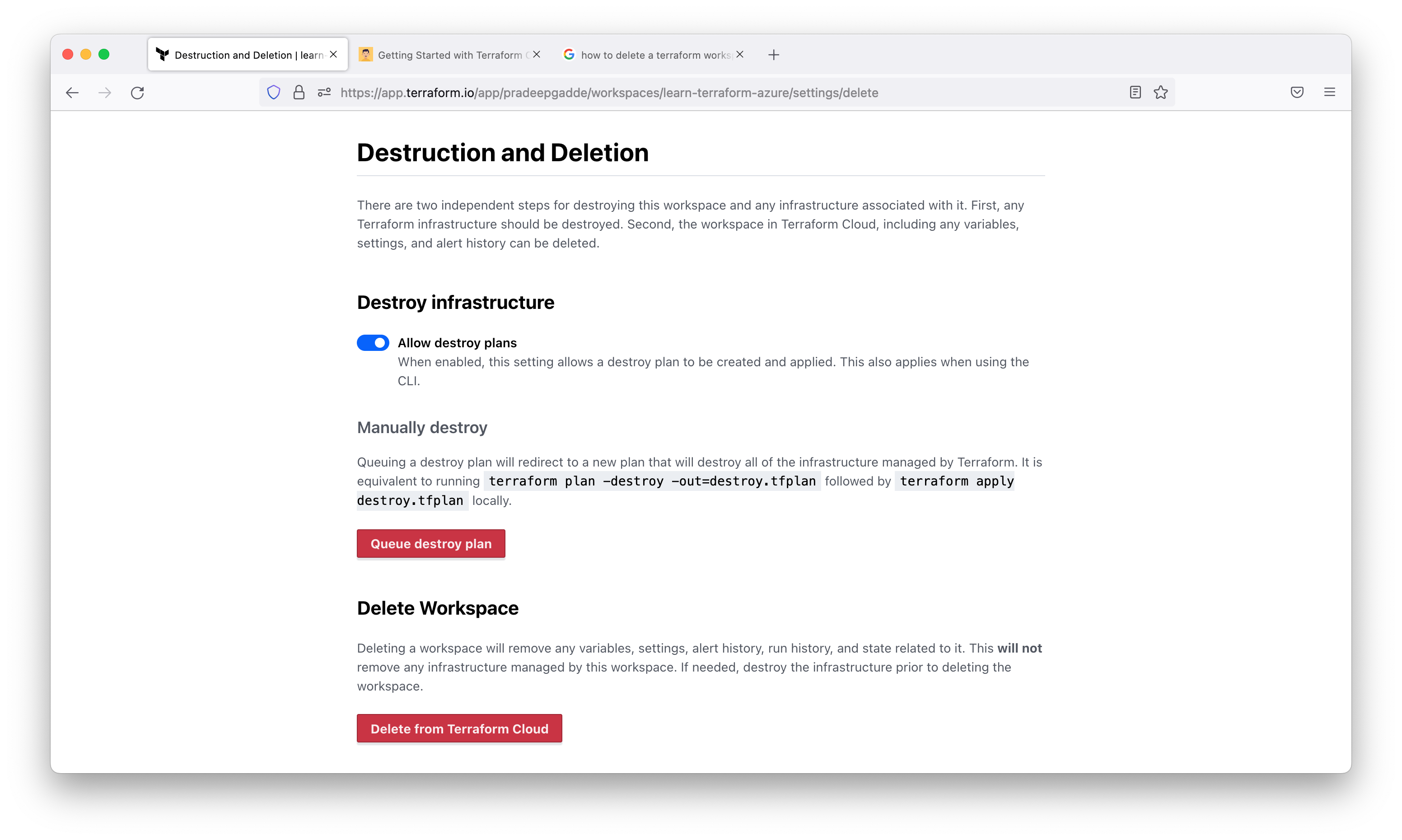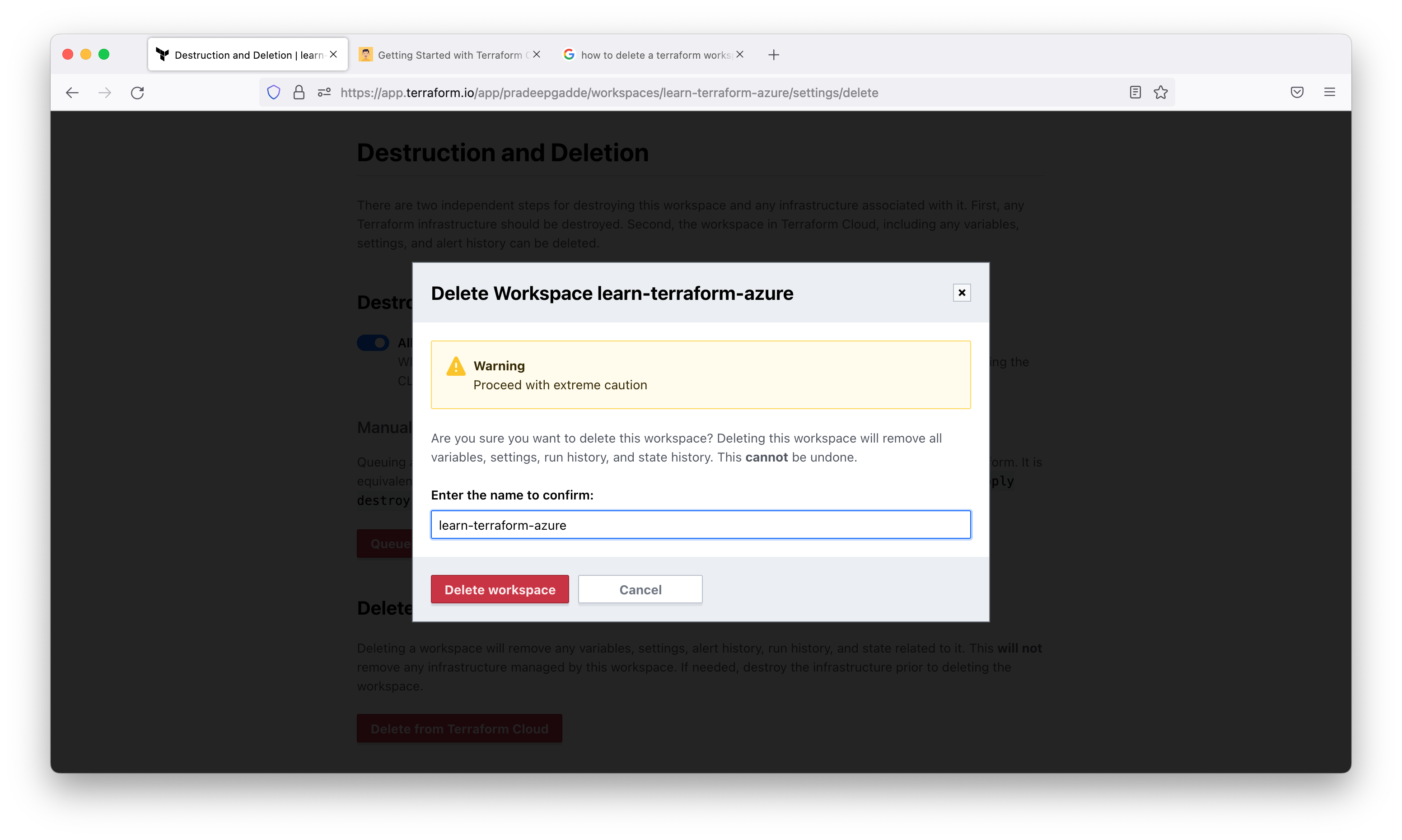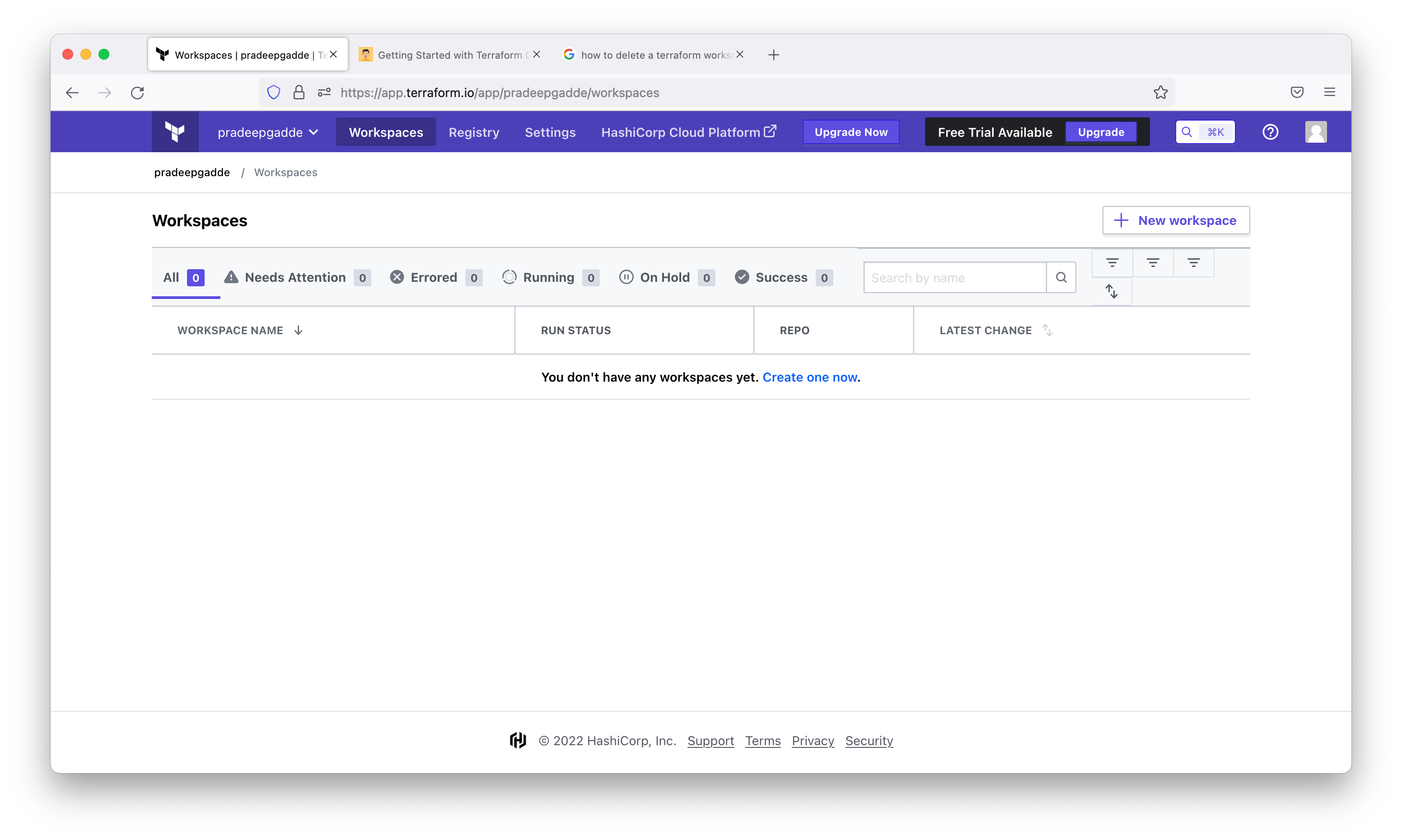
Terraform Cloud - Azure Remote State
Terraform Cloud Remote State
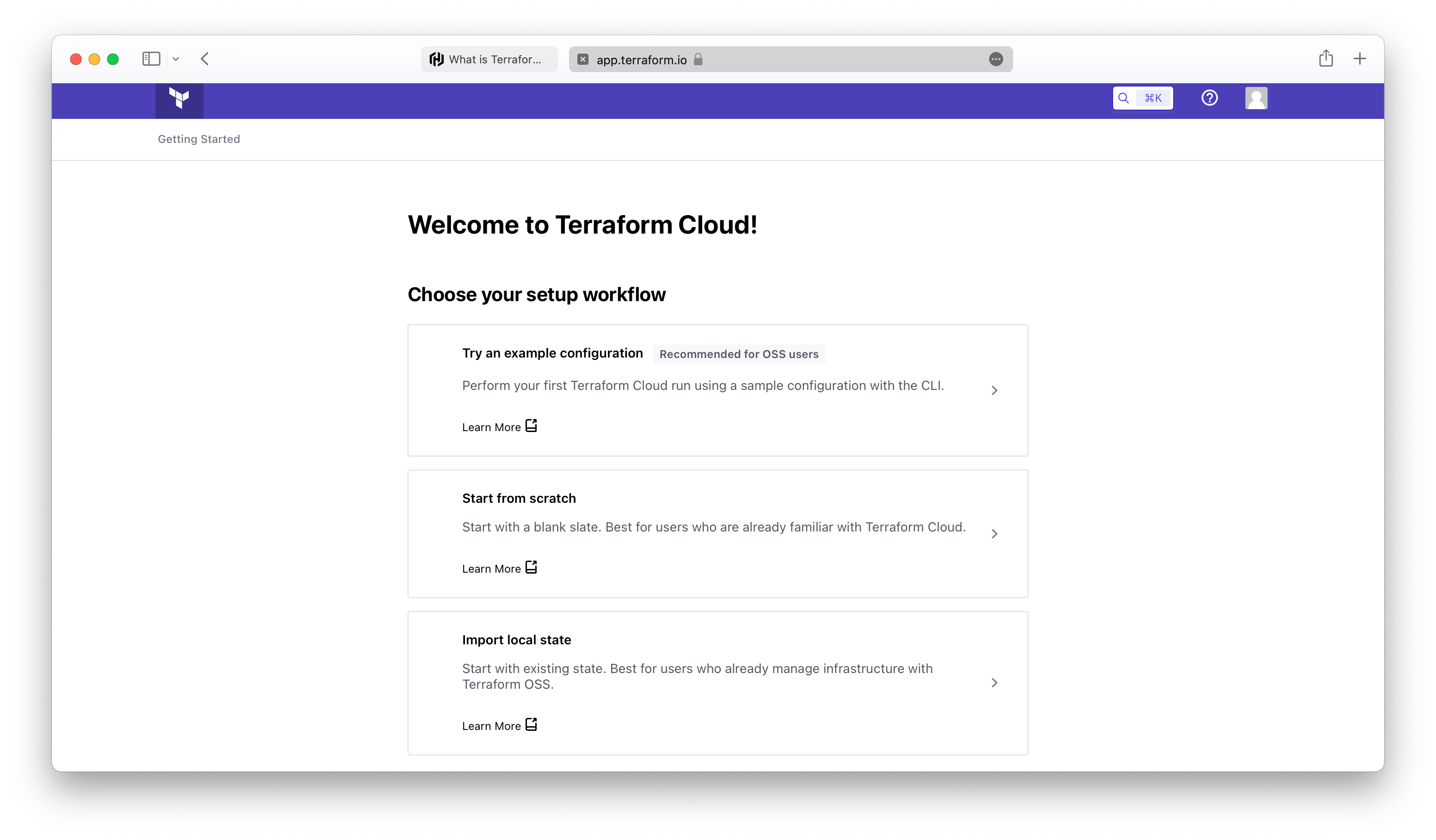
Login to the Terraform Cloud and start from scratch.
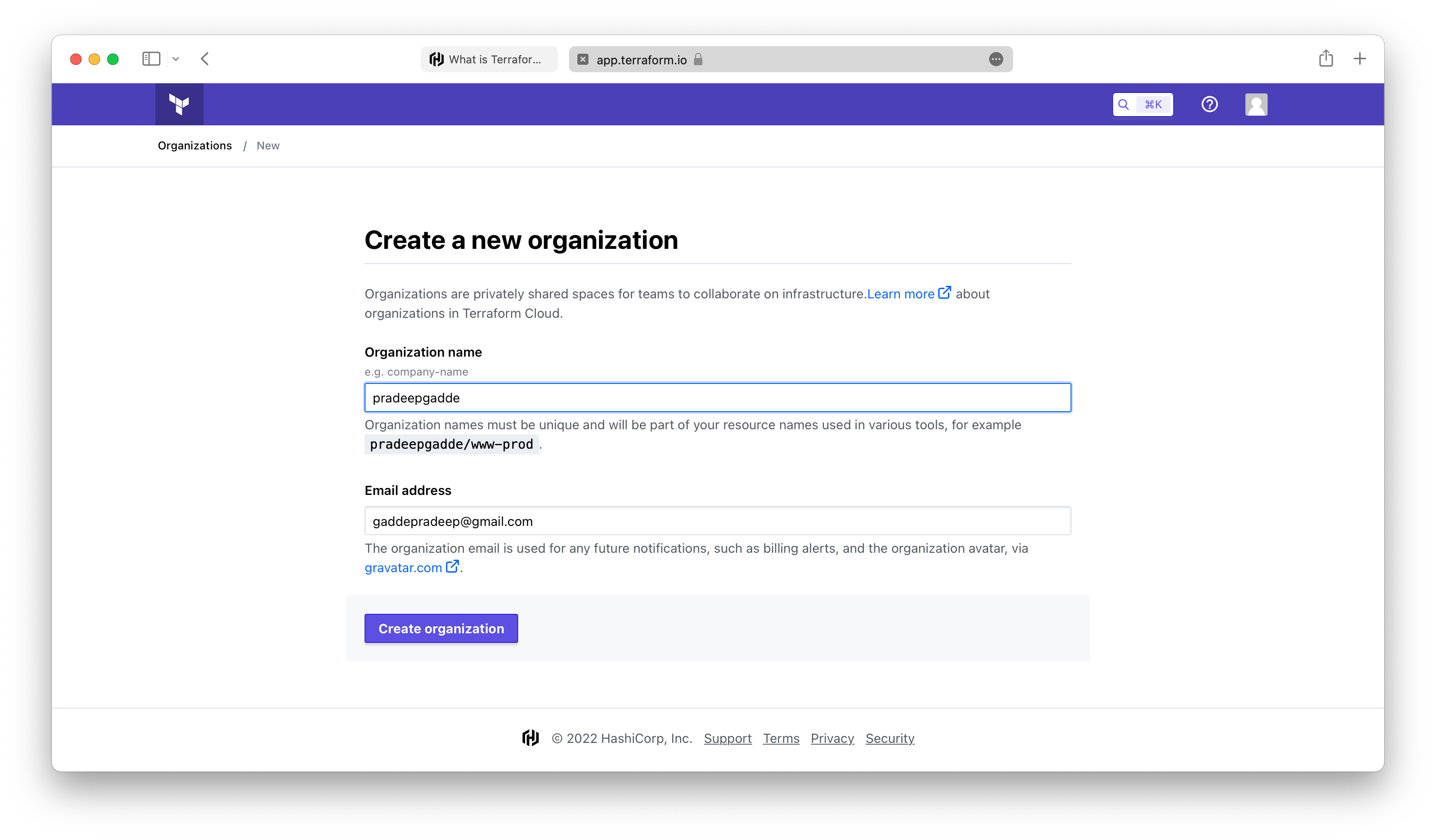
Create a new organization. Creating organizations of up to 5 users is free, and the members you add to the organization will be able to collaborate on your workspaces and share private modules and providers.
Verify that the new organization is created and you are shown the new workspace creation screen.
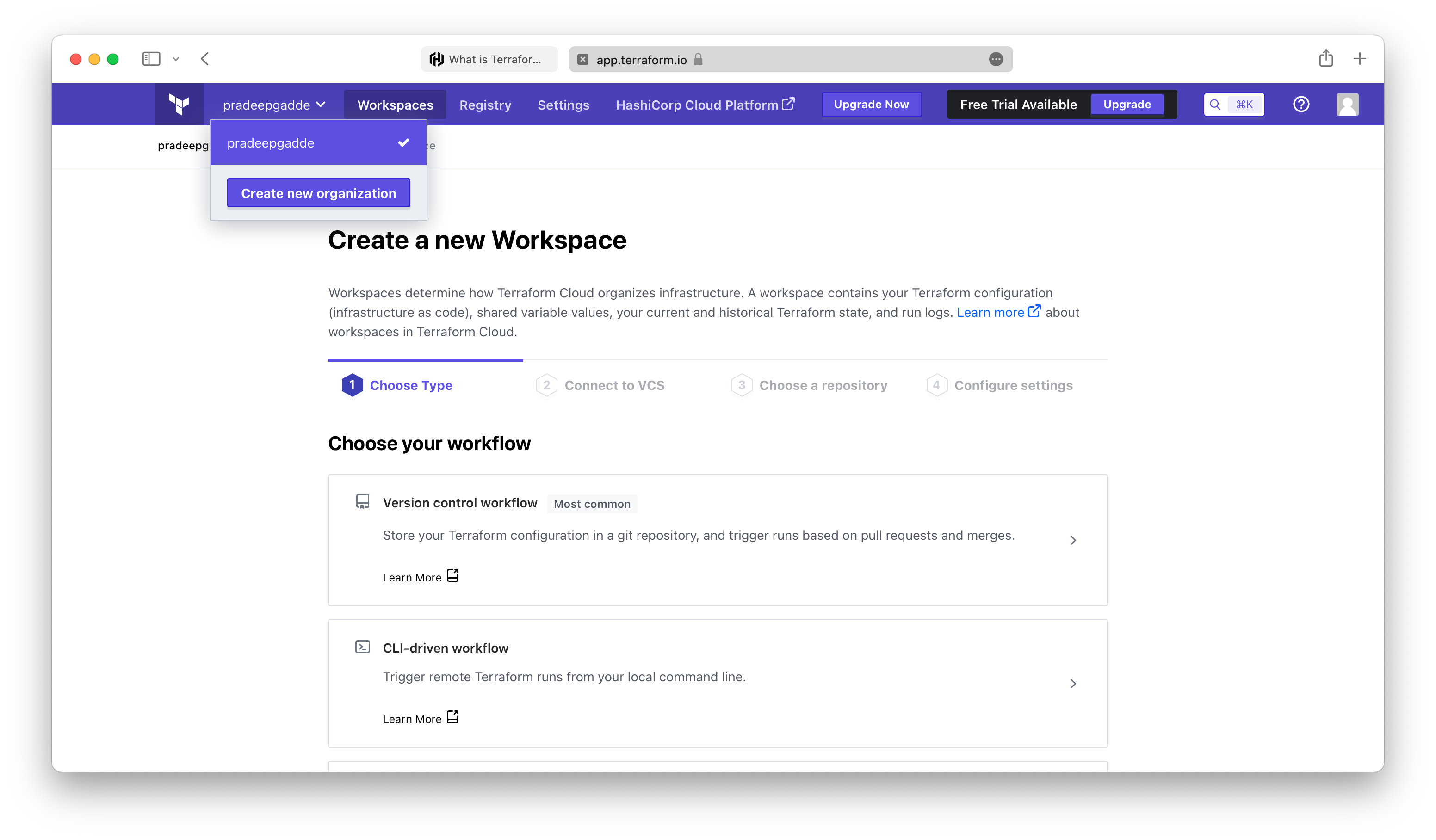
Now that you have created an account and organization, you are ready to authenticate and begin using Terraform Cloud.
Earlier we have built, changed, and destroyed infrastructure from our local machine. This is great for testing and development, but in production environments you should keep your state secure and encrypted, where your teammates can access it to collaborate on infrastructure.
The best way to do this is by running Terraform in a remote environment with shared access to state.
Terraform Cloud allows teams to easily version, audit, and collaborate on infrastructure changes. It can also store access credentials off of developer machines, and provides a safe, stable environment for long-running Terraform processes.
Configure the cloud block in your configuration (main.tf) with the organization name, and a new workspace name of your choice:
(base) pradeep:~$cat main.tf
terraform {
  required_version = ">= 1.1.0"
  required_providers {
    azurerm = {
      source = "hashicorp/azurerm"
      version = "~> 3.0.2"
    }
  }
  cloud {
    organization = "pradeepgadde"
    workspaces {
      name = "learn-terraform-azure"
    }
  }
}

provider "azurerm" {
  features {}
}
(base) pradeep:~$
Now that you have defined your Terraform Cloud configuration, you must authenticate with Terraform Cloud in order to proceed with initialization. In order to authenticate with Terraform Cloud, run the terraform login subcommand, and follow the prompts to log in. Respond yes to the prompt to confirm that you want to authenticate.
(base) pradeep:~$terraform login
Terraform will request an API token for app.terraform.io using your browser.

If login is successful, Terraform will store the token in plain text in
the following file for use by subsequent commands:
    /Users/pradeep/.terraform.d/credentials.tfrc.json

Do you want to proceed?
  Only 'yes' will be accepted to confirm.

  Enter a value: yes


---------------------------------------------------------------------------------

Terraform must now open a web browser to the tokens page for app.terraform.io.

If a browser does not open this automatically, open the following URL to proceed:
    https://app.terraform.io/app/settings/tokens?source=terraform-login


---------------------------------------------------------------------------------

Generate a token using your browser, and copy-paste it into this prompt.

Terraform will store the token in plain text in the following file
for use by subsequent commands:
    /Users/pradeep/.terraform.d/credentials.tfrc.json

Token for app.terraform.io:
  Enter a value:
A browser window will automatically open to the Terraform Cloud login screen. Enter a token name in the web UI, or leave the default name, terraform login.
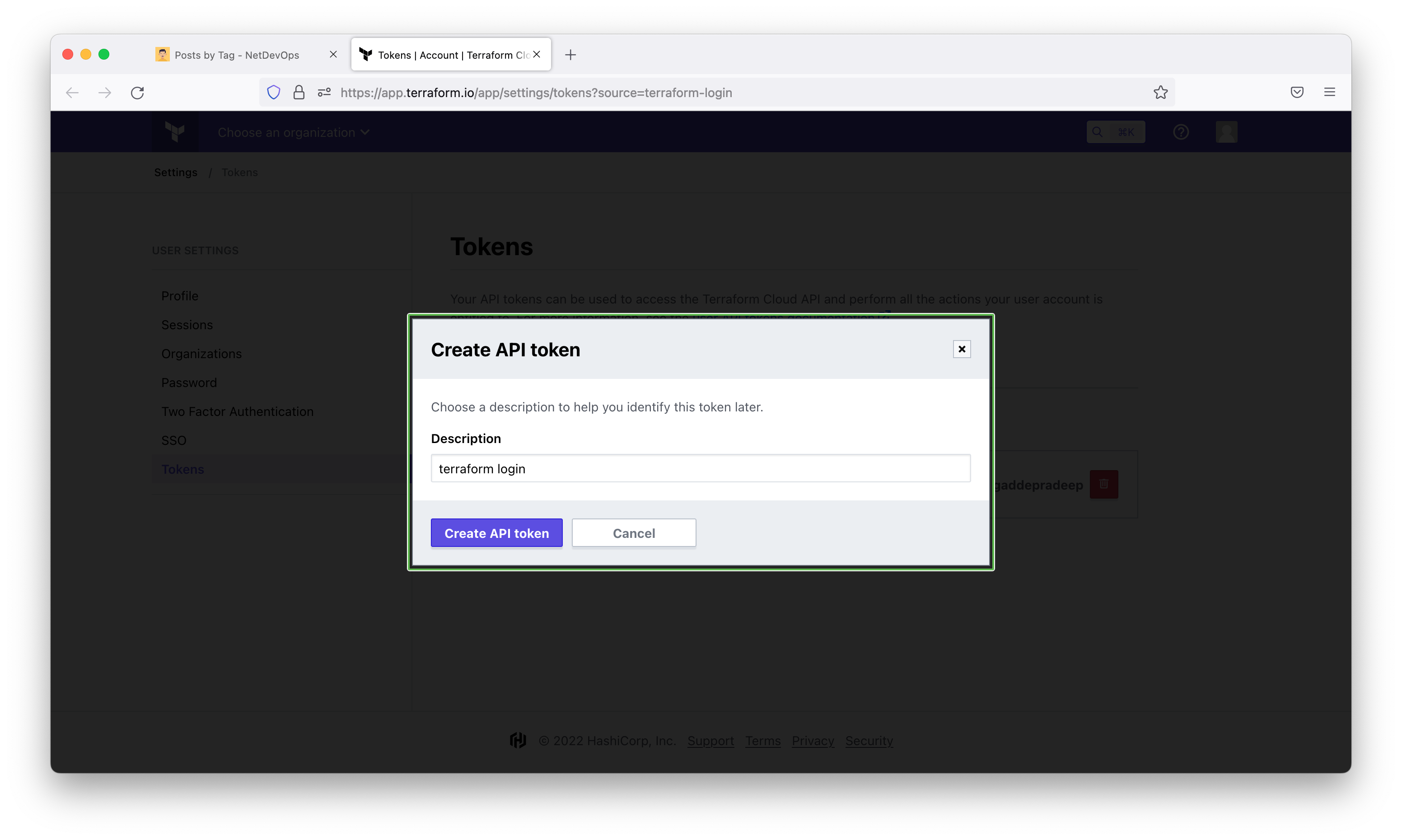
Click Create API token to generate the authentication token.
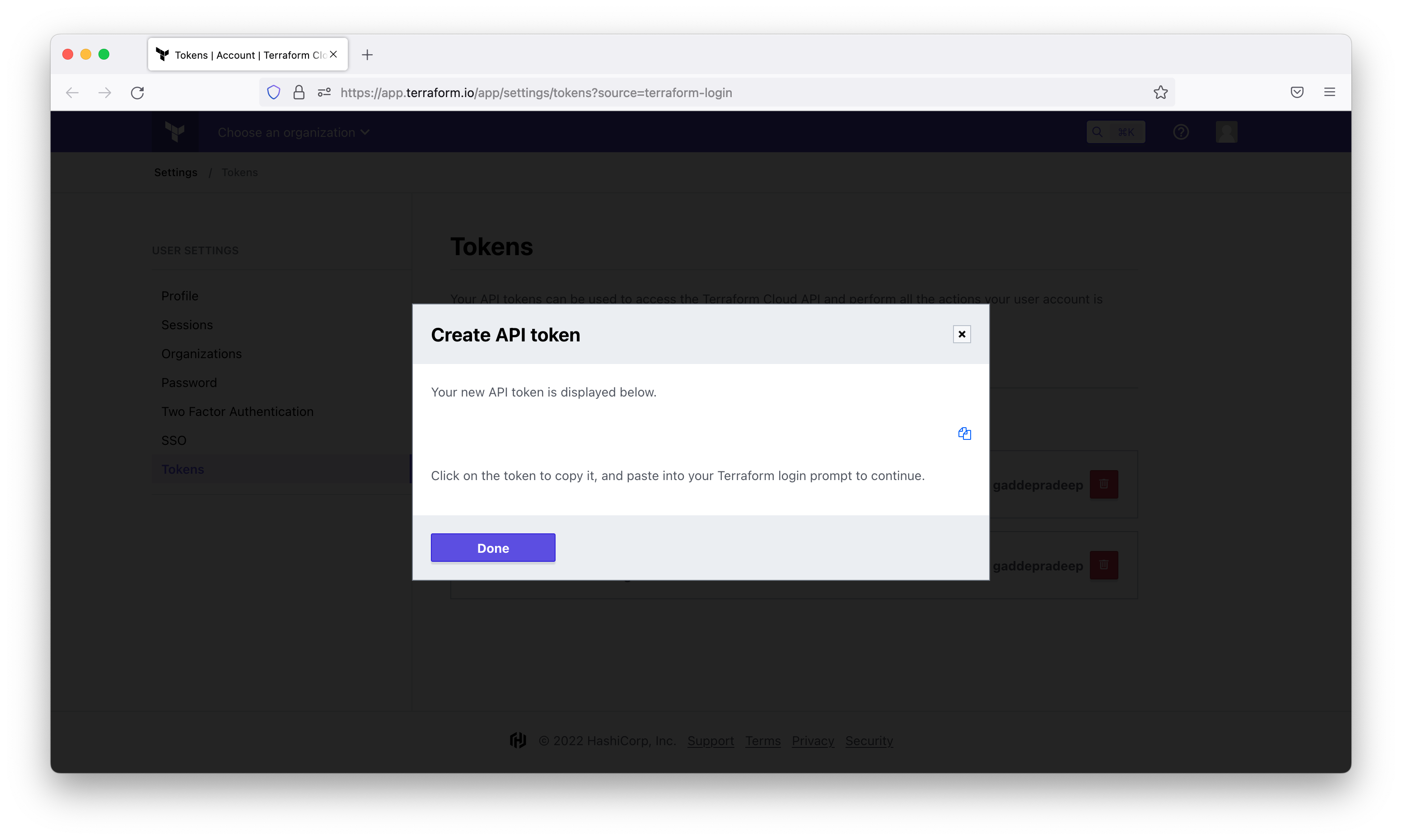
Save a copy of the token in a secure location. It provides access to your Terraform Cloud organization. Terraform will also store your token locally at the file path specified in the command output.
When the Terraform CLI prompts you, paste the user token exactly once into your terminal. Terraform will hide the token for security when you paste it into your terminal. Press Enter to complete the authentication process.
(base) pradeep:~$terraform login
Terraform will request an API token for app.terraform.io using your browser.

If login is successful, Terraform will store the token in plain text in
the following file for use by subsequent commands:
    /Users/pradeep/.terraform.d/credentials.tfrc.json

Do you want to proceed?
  Only 'yes' will be accepted to confirm.

  Enter a value: yes


---------------------------------------------------------------------------------

Terraform must now open a web browser to the tokens page for app.terraform.io.

If a browser does not open this automatically, open the following URL to proceed:
    https://app.terraform.io/app/settings/tokens?source=terraform-login


---------------------------------------------------------------------------------

Generate a token using your browser, and copy-paste it into this prompt.

Terraform will store the token in plain text in the following file
for use by subsequent commands:
    /Users/pradeep/.terraform.d/credentials.tfrc.json

Token for app.terraform.io:
  Enter a value:


Retrieved token for user gaddepradeep


---------------------------------------------------------------------------------

                                          -
                                          -----                           -
                                          ---------                      --
                                          ---------  -                -----
                                           ---------  ------        -------
                                             -------  ---------  ----------
                                                ----  ---------- ----------
                                                  --  ---------- ----------
   Welcome to Terraform Cloud!                     -  ---------- -------
                                                      ---  ----- ---
   Documentation: terraform.io/docs/cloud             --------   -
                                                      ----------
                                                      ----------
                                                       ---------
                                                           -----
                                                               -


   New to TFC? Follow these steps to instantly apply an example configuration:

   $ git clone https://github.com/hashicorp/tfc-getting-started.git
   $ cd tfc-getting-started
   $ scripts/setup.sh


(base) pradeep:~$
Once you have authenticated to Terraform Cloud, you are ready to perform remote operations.
Now you are ready to create remote state file to Terraform Cloud. Reinitialize your configuration to begin the migration. This causes Terraform to recognize your cloud block configuration.
(base) pradeep:~$terraform init

Initializing Terraform Cloud...

Initializing provider plugins...
- Reusing previous version of hashicorp/azurerm from the dependency lock file
- Using previously-installed hashicorp/azurerm v3.0.2

Terraform Cloud has been successfully initialized!

You may now begin working with Terraform Cloud. Try running "terraform plan" to
see any changes that are required for your infrastructure.

If you ever set or change modules or Terraform Settings, run "terraform init"
again to reinitialize your working directory.
(base) pradeep:~$
(base) pradeep:~$terraform plan
Running plan in Terraform Cloud. Output will stream here. Pressing Ctrl-C
will stop streaming the logs, but will not stop the plan running remotely.

Preparing the remote plan...

To view this run in a browser, visit:
https://app.terraform.io/app/pradeepgadde/learn-terraform-azure/runs/run-MpPdWeqnCdD53UZH

Waiting for the plan to start...

Terraform v1.2.8
on linux_amd64
Initializing plugins and modules...

No changes. Your infrastructure matches the configuration.

Terraform has compared your real infrastructure against your configuration
and found no differences, so no changes are needed.
(base) pradeep:~$
(base) pradeep:~$terraform apply
Running apply in Terraform Cloud. Output will stream here. Pressing Ctrl-C
will cancel the remote apply if it's still pending. If the apply started it
will stop streaming the logs, but will not stop the apply running remotely.

Preparing the remote apply...

To view this run in a browser, visit:
https://app.terraform.io/app/pradeepgadde/learn-terraform-azure/runs/run-o2jwktR1VbZhSDxc

Waiting for the plan to start...

Terraform v1.2.8
on linux_amd64
Initializing plugins and modules...

No changes. Your infrastructure matches the configuration.

Terraform has compared your real infrastructure against your configuration
and found no differences, so no changes are needed.
(base) pradeep:~$
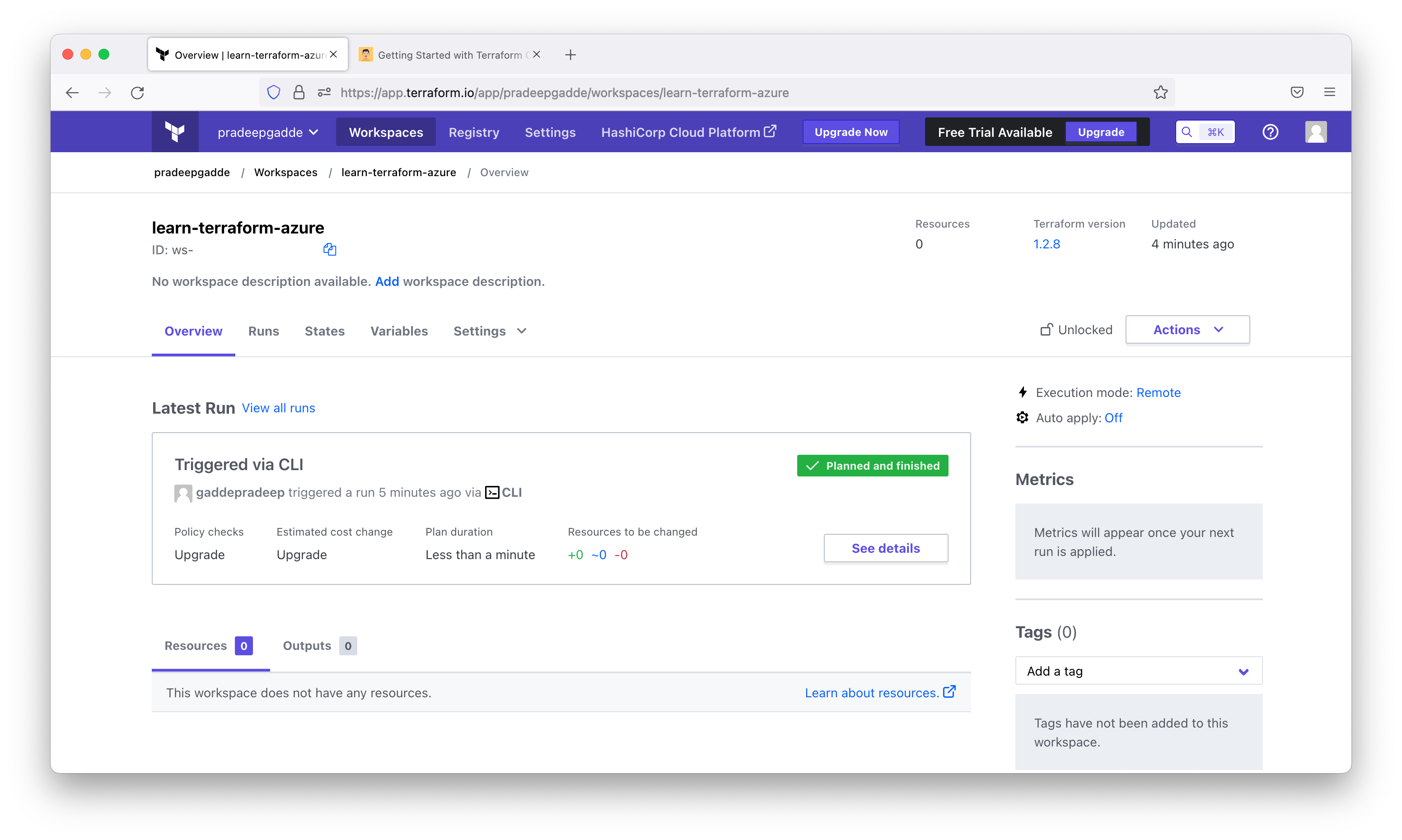
We can see that all workflows are getting executed in the Terraform Cloud.
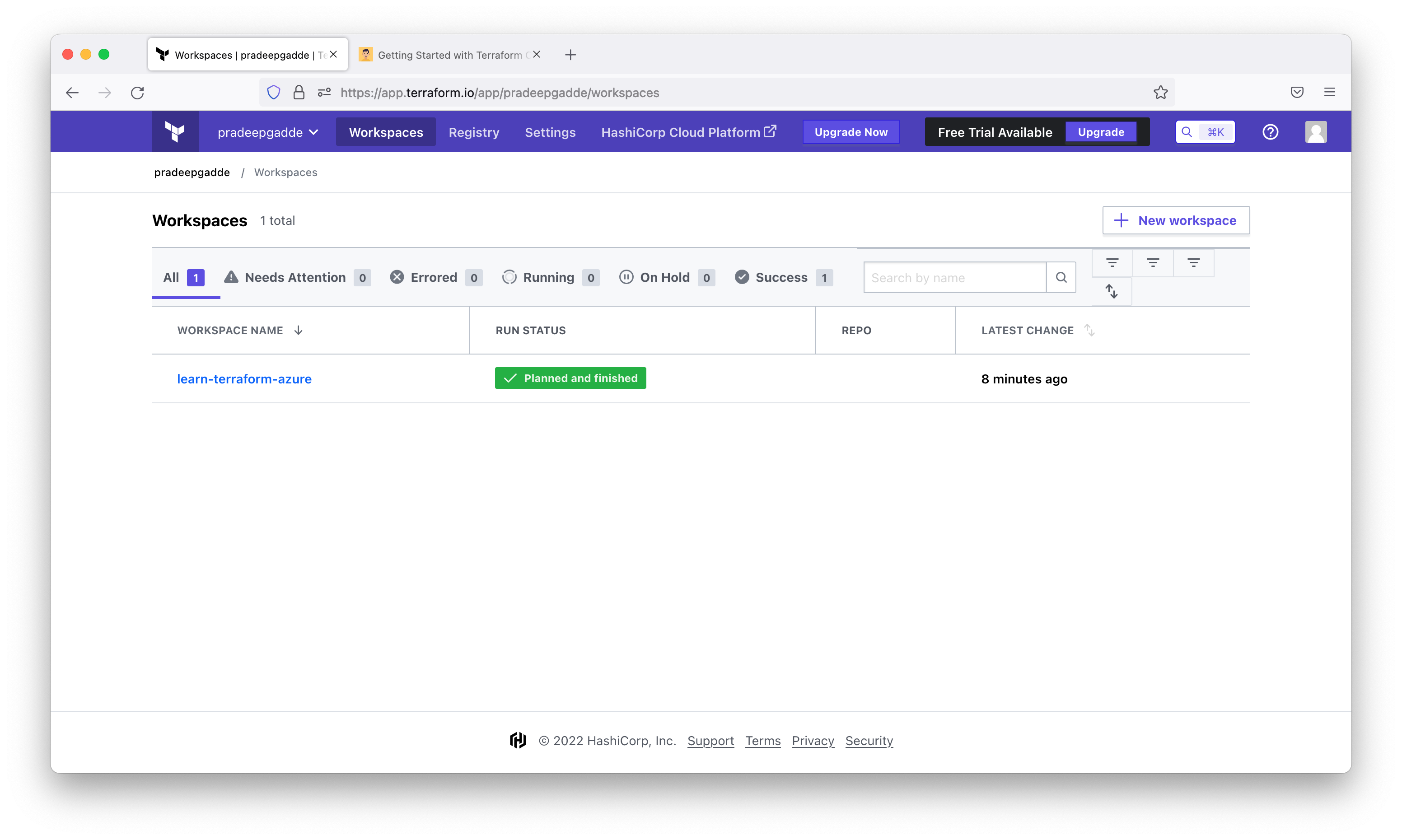
Also, we can see that the workspace got created.
Also, note that there is no local .tfstate file created anymore.
(base) pradeep:~$ls -la
total 16
drwxr-xr-x    6 pradeep  staff   192 Sep  9 21:32 .
drwxr-xr-x+ 109 pradeep  staff  3488 Sep  9 21:22 ..
drwxr-xr-x    5 pradeep  staff   160 Sep  9 21:28 .terraform
-rw-r--r--    1 pradeep  staff  1111 Sep  7 20:57 .terraform.lock.hcl
-rw-r--r--    1 pradeep  staff   303 Sep  9 21:22 main.tf
drwxr-xr-x   12 pradeep  staff   384 Sep  7 23:31 tfc-getting-started
(base) pradeep:~$
When using Terraform Cloud with the CLI-driven workflow, you can choose to have Terraform run remotely, or on your local machine. The default option is remote execution — Terraform Cloud will perform Terraform operations remotely. When using local execution, Terraform Cloud will execute Terraform on your local machine and remotely store your state file in Terraform Cloud. For this tutorial, you will use the default remote execution option for the workspace.
If you want to move back to local state, you can remove the cloud configuration block from your configuration and run terraform init again. Terraform will ask if you want to migrate your state to local.
(base) pradeep:~$cat main.tf
terraform {
  required_version = ">= 1.1.0"
  required_providers {
    azurerm = {
      source = "hashicorp/azurerm"
      version = "~> 3.0.2"
    }
  }
}

provider "azurerm" {
  features {}
}
(base) pradeep:~$
(base) pradeep:~$terraform init

Initializing the backend...
Migrating from Terraform Cloud to local state.
╷
│ Error: Migrating state from Terraform Cloud to another backend is not yet implemented.
│
│ Please use the API to do this: https://www.terraform.io/docs/cloud/api/state-versions.html
│
│
╵

(base) pradeep:~$
(base) pradeep:~$terraform plan
╷
│ Error: Backend initialization required, please run "terraform init"
│
│ Reason: Unsetting the previously set backend "cloud"
│
│ The "backend" is the interface that Terraform uses to store state,
│ perform operations, etc. If this message is showing up, it means that the
│ Terraform configuration you're using is using a custom configuration for
│ the Terraform backend.
│
│ Changes to backend configurations require reinitialization. This allows
│ Terraform to set up the new configuration, copy existing state, etc. Please run
│ "terraform init" with either the "-reconfigure" or "-migrate-state" flags to
│ use the current configuration.
│
│ If the change reason above is incorrect, please verify your configuration
│ hasn't changed and try again. At this point, no changes to your existing
│ configuration or state have been made.
╵
(base) pradeep:~$
(base) pradeep:~$terraform init --migrate-state

Initializing the backend...
╷
│ Error: Invalid command-line option
│
│ The -migrate-state option is for migration between state backends only, and is not applicable when using Terraform Cloud.
│
│ Terraform Cloud migration has additional steps, configured by interactive prompts.
╵

(base) pradeep:~$
(base) pradeep:~$terraform init -reconfigure

Initializing the backend...

Initializing provider plugins...
- Reusing previous version of hashicorp/azurerm from the dependency lock file
- Using previously-installed hashicorp/azurerm v3.0.2

Terraform has been successfully initialized!

You may now begin working with Terraform. Try running "terraform plan" to see
any changes that are required for your infrastructure. All Terraform commands
should now work.

If you ever set or change modules or backend configuration for Terraform,
rerun this command to reinitialize your working directory. If you forget, other
commands will detect it and remind you to do so if necessary.
(base) pradeep:~$
Add the Cloud block again
(base) pradeep:~$cat main.tf
terraform {
  required_version = ">= 1.1.0"
  required_providers {
    azurerm = {
      source = "hashicorp/azurerm"
      version = "~> 3.0.2"
    }
  }
 cloud {
    organization = "pradeepgadde"
    workspaces {
      name = "learn-terraform-azure"
    }
  }
}
provider "azurerm" {
  features {}
}
(base) pradeep:~$
(base) pradeep:~$terraform init

Initializing Terraform Cloud...

Initializing provider plugins...
- Reusing previous version of hashicorp/azurerm from the dependency lock file
- Using previously-installed hashicorp/azurerm v3.0.2

Terraform Cloud has been successfully initialized!

You may now begin working with Terraform Cloud. Try running "terraform plan" to
see any changes that are required for your infrastructure.

If you ever set or change modules or Terraform Settings, run "terraform init"
again to reinitialize your working directory.
(base) pradeep:~$
(base) pradeep:~$terraform plan
Running plan in Terraform Cloud. Output will stream here. Pressing Ctrl-C
will stop streaming the logs, but will not stop the plan running remotely.

Preparing the remote plan...

To view this run in a browser, visit:
https://app.terraform.io/app/pradeepgadde/learn-terraform-azure/runs/run-6Ry1R1QvME6jXr5p

Waiting for the plan to start...

Terraform v1.2.8
on linux_amd64
Initializing plugins and modules...

No changes. Your infrastructure matches the configuration.

Terraform has compared your real infrastructure against your configuration
and found no differences, so no changes are needed.
(base) pradeep:~$
(base) pradeep:~$terraform destroy
Running apply in Terraform Cloud. Output will stream here. Pressing Ctrl-C
will cancel the remote apply if it's still pending. If the apply started it
will stop streaming the logs, but will not stop the apply running remotely.

Preparing the remote apply...

To view this run in a browser, visit:
https://app.terraform.io/app/pradeepgadde/learn-terraform-azure/runs/run-8WWC3jti1osNP42h

Waiting for the plan to start...

Terraform v1.2.8
on linux_amd64
Initializing plugins and modules...

No changes. No objects need to be destroyed.

Either you have not created any objects yet or the existing objects were
already deleted outside of Terraform.
(base) pradeep:~$
(base) pradeep:~$terraform workspace list
* learn-terraform-azure
(base) pradeep:~$
(base) pradeep:~$terraform workspace show
learn-terraform-azure
(base) pradeep:~$
(base) pradeep:~$terraform workspace show learn-terraform-azure
learn-terraform-azure
(base) pradeep:~$
(base) pradeep:~$terraform workspace delete learn-terraform-azure
Workspace "learn-terraform-azure" is your active workspace.

You cannot delete the currently active workspace. Please switch
to another workspace and try again.
(base) pradeep:~$